Step-by-step guide
How it works
From sign-up to an approved shipment: six steps, shown on the real portal. Companies and numbers visible in the screenshots are fictitious.
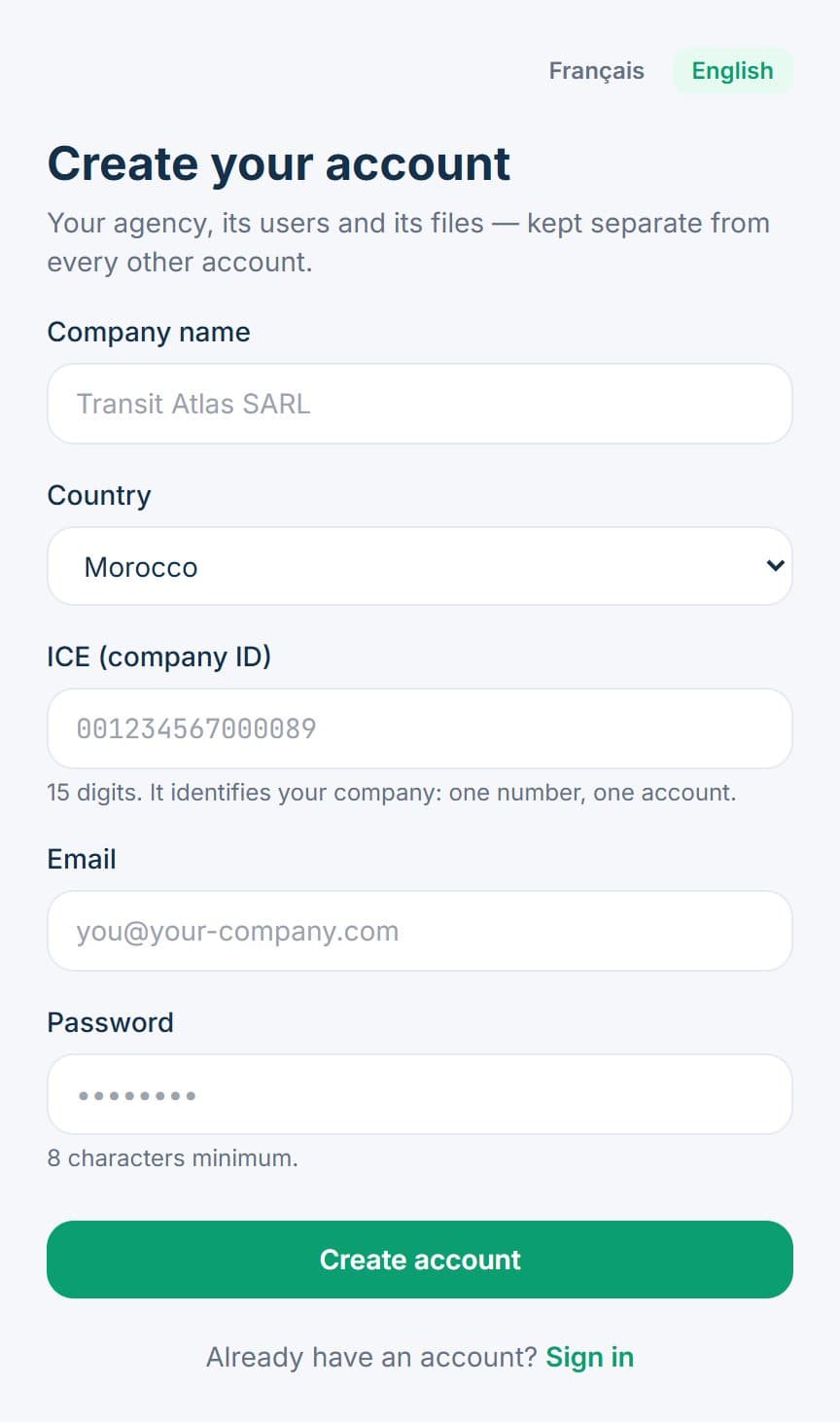
Create your account
Company name, country, your company's tax ID, email and password — that's all. The standard set of checks is applied straight away.
A confirmation link arrives by email. You can upload documents right away; checks are enabled once the address is confirmed.
Create a shipment
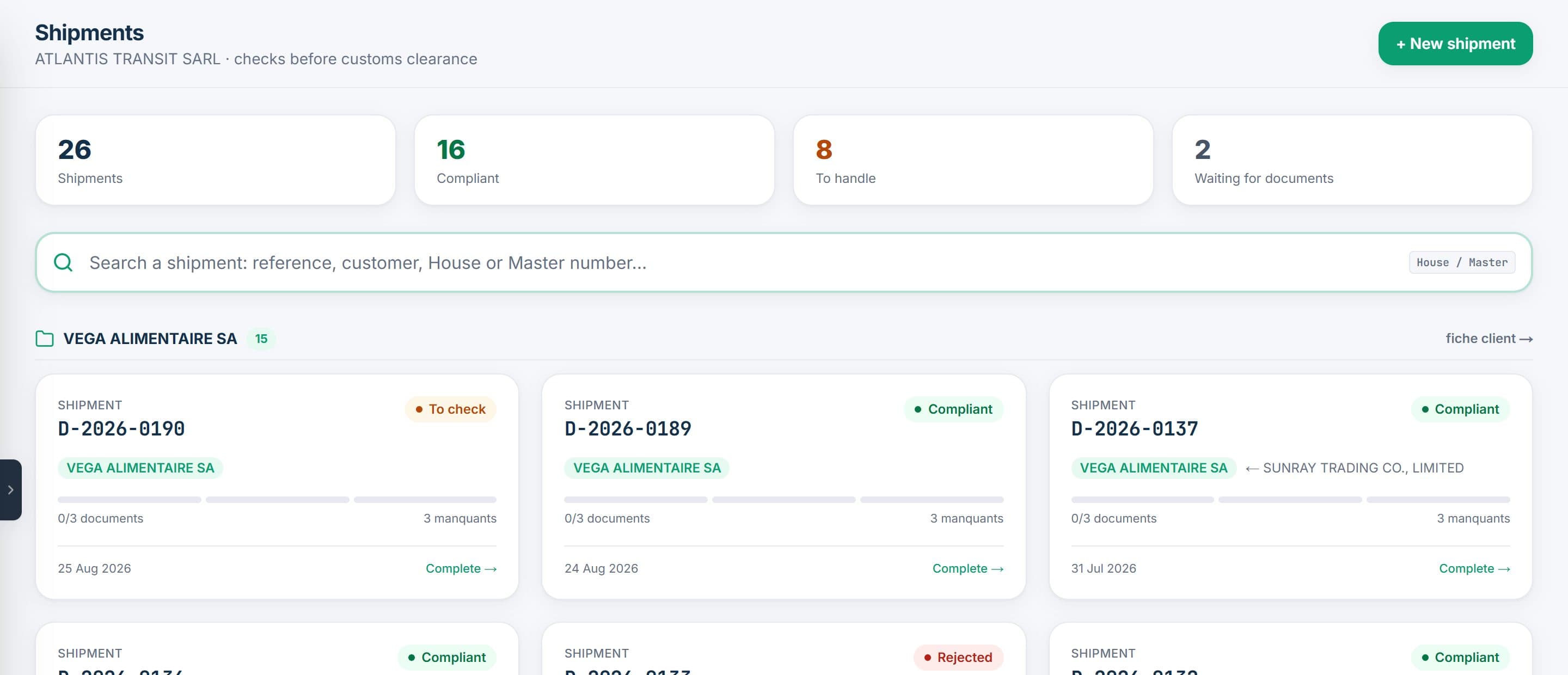
One click on “New shipment”: the reference is assigned automatically. One shipment file per consignment.
The list groups your shipments by end customer — detected from the documents themselves — and shows which ones are waiting for a document or a decision.
Upload the documents
This is the step everything else depends on: each document goes into its slot, and the system does the rest. Here is the detail.
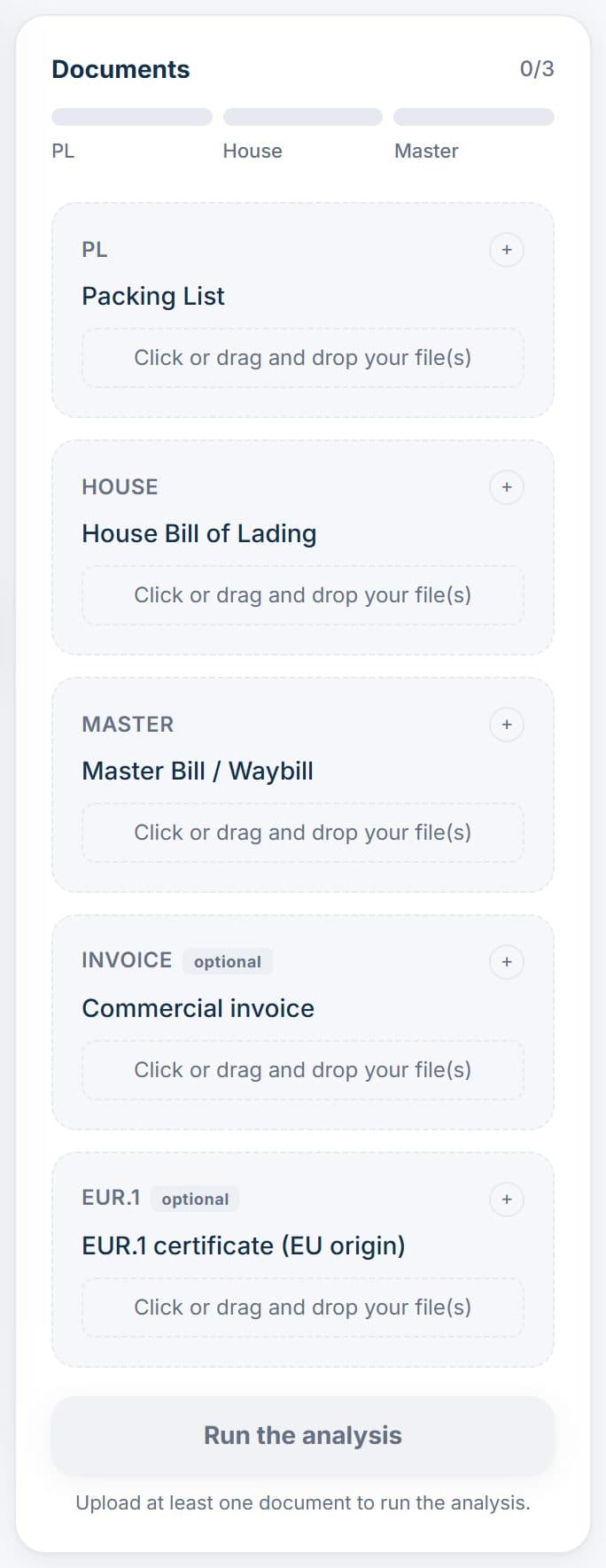
3.1The Documents panel
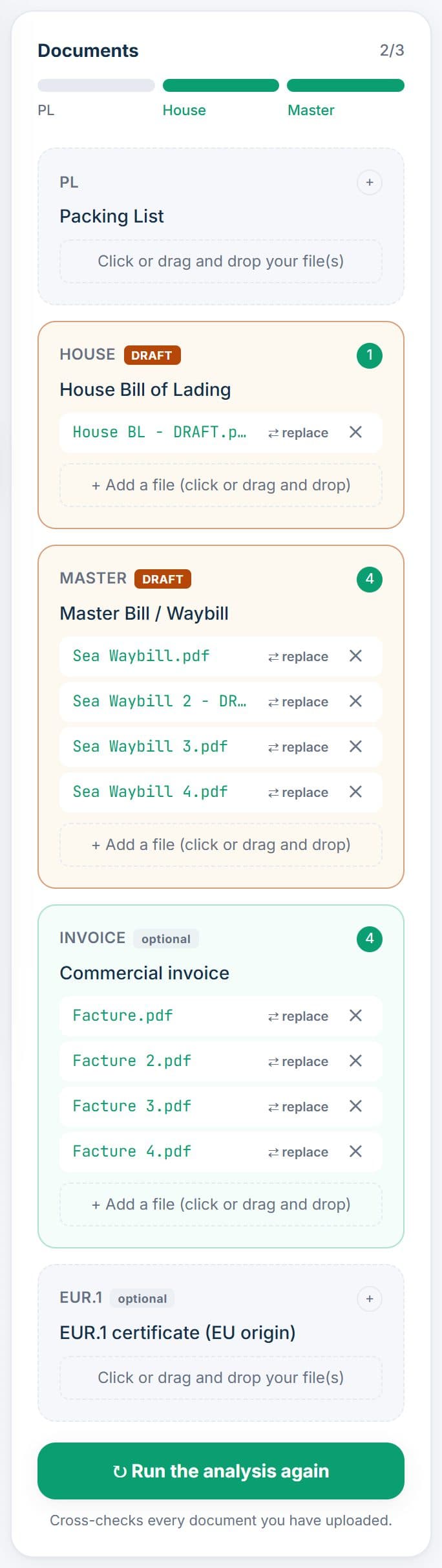
One slot per document type. The first three are the core documents: packing list, House B/L, Master B/L or Sea Waybill. Invoice and EUR.1 are optional. The counter at the top shows how many core documents are already in.
3.2Drag or click
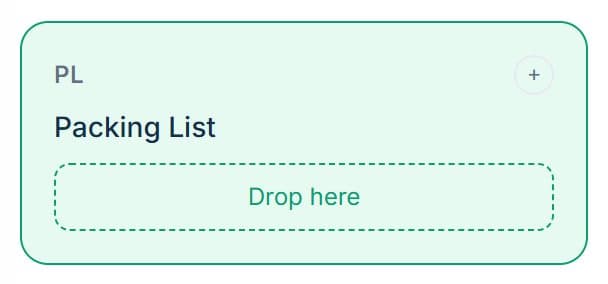
Drag the file from your file explorer or straight from your email client: the slot lights up when you hover over it. Clicking the dashed area also opens the file picker. Aim for the right slot: it tells the system which document this is.
3.3The file is saved
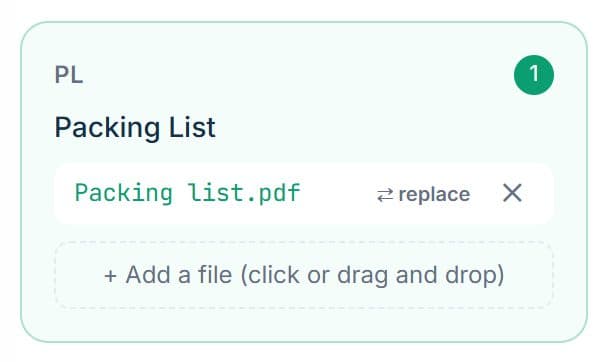
The file name appears in the slot with two actions: “replace” and ✕ to remove it. If a file is rejected (format, size), a clear message says why.
3.4Several files, drafts included
A four-container shipment often has four Sea Waybills and four invoices: drop them all in the same slot, totals are recalculated across them. A document marked DRAFT is detected and flagged. When the final version arrives, “replace” sets the draft aside: it stays available and is used for comparison, without skewing the totals.
3.5Run the analysis
The button becomes active as soon as the first document is uploaded. You can run it without waiting for the others: each missing core document shows up as a blocking finding, and re-running after adding one doesn't count as a new shipment.

Good to know
- ✓Accepted formats: native or scanned PDFs, Excel files. Up to 15 MB per file.
- ✓Use the original PDF rather than a scan when you have it: it reads more reliably.
- ✓A House and a Master dropped in each other's slot are detected: the report flags it and offers to swap them in one click.
- ✓A shipping instruction or booking confirmation is not a packing list: don't put it in that slot.
Read the report
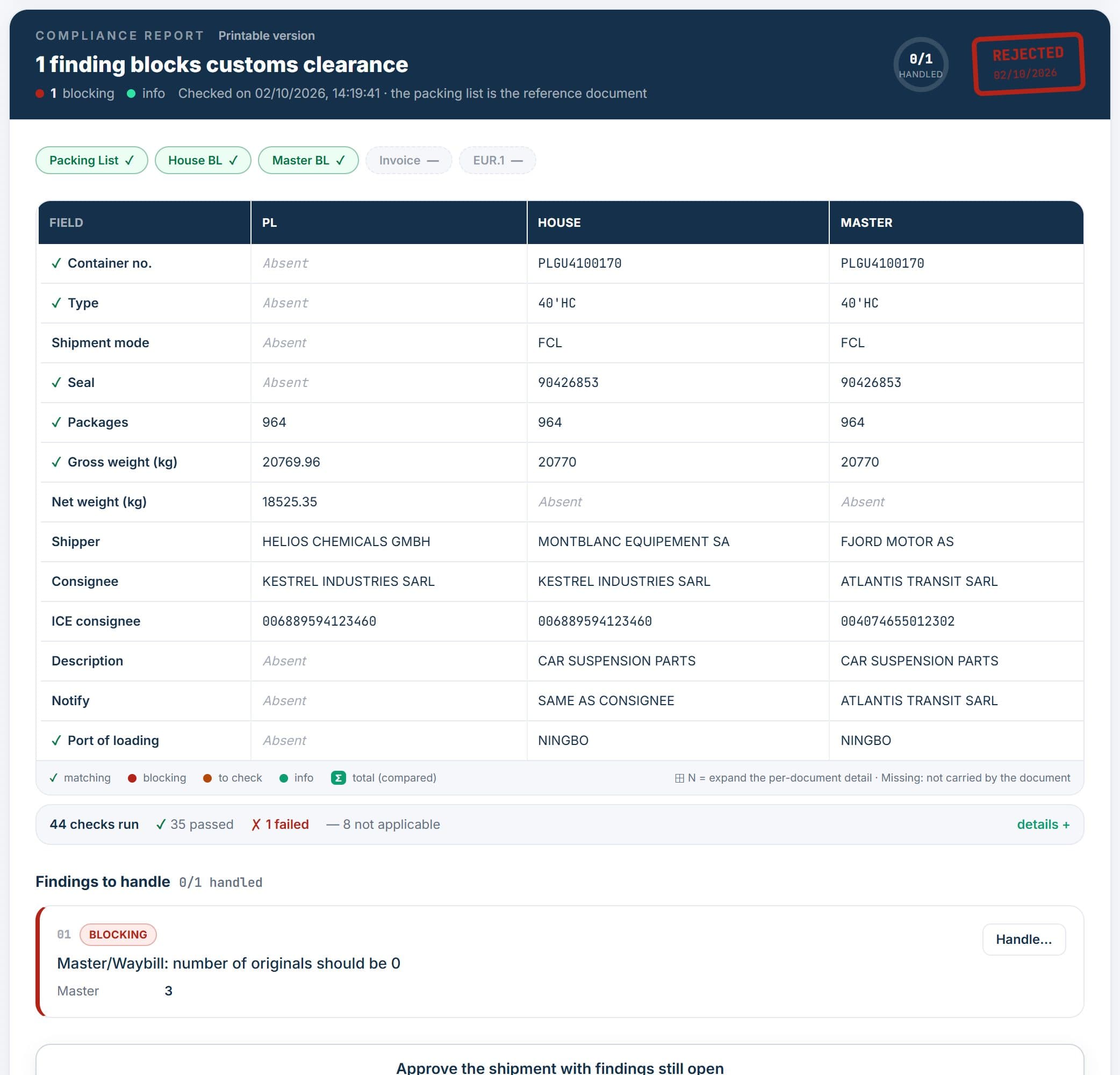
In under a minute, the verdict appears at the top: ready to approve, or the number of findings blocking customs clearance.
The comparison puts the documents side by side, field by field: container, type, seal, packages, weights, parties, ports. A green tick marks what matches, a colour what differs.
Below the table: the number of checks run and the findings to handle, most serious first.
Resolve the discrepancies
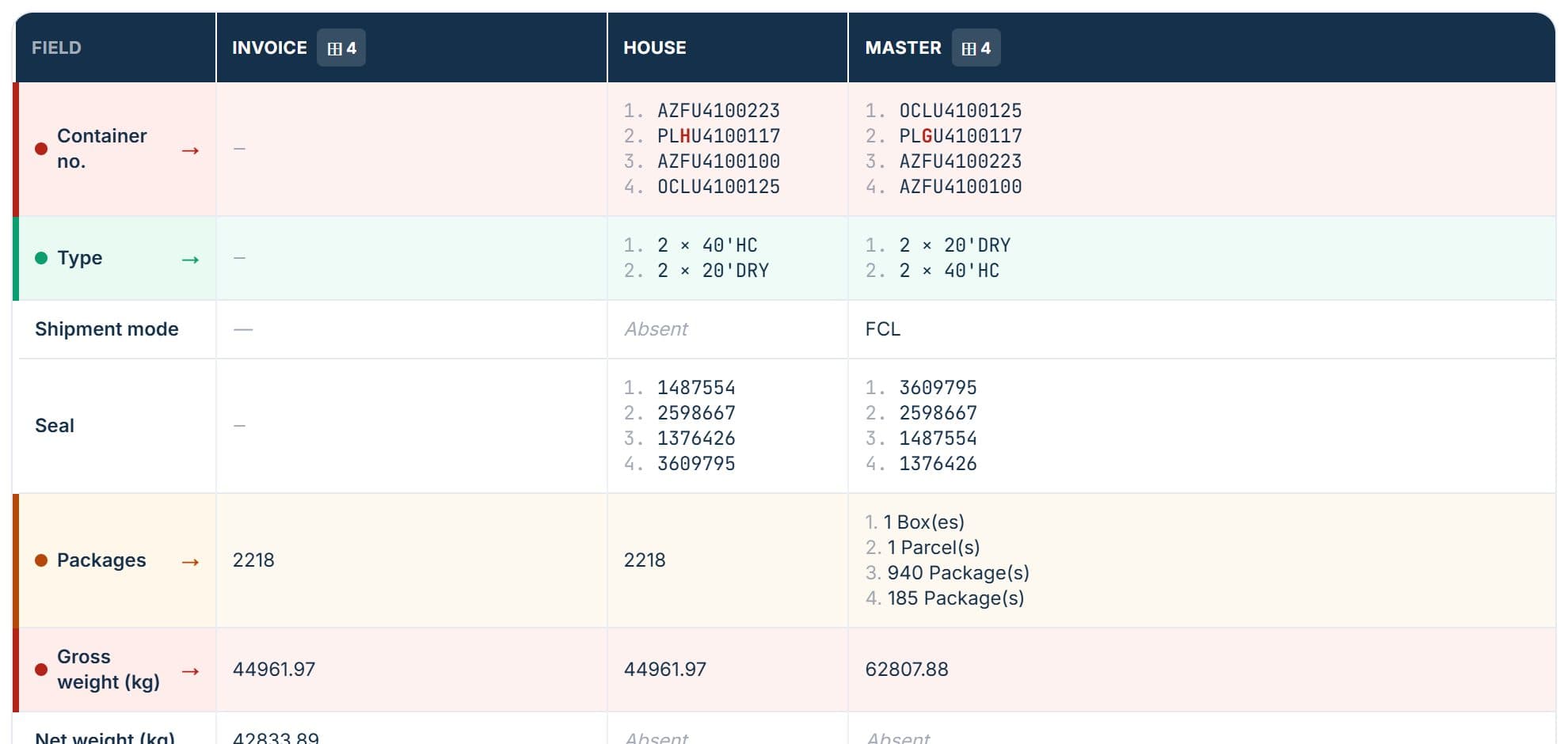
Each finding says what is wrong and on which document. Here, a four-container shipment: a single character differs between the House and the Master, and that character is highlighted on both sides.
The container number's check digit then tells you which document to get corrected: the House, not the Master.

Approve the shipment
Mark each finding as handled, with a comment. Once everything is settled, the administrator approves the shipment and it gets the COMPLIANT stamp. The decision always stays yours.
The report also comes in a printable version, to send to your customer or customs broker. Re-running after a correction doesn't count as a new shipment, and findings already handled are carried over.
What if your business works differently?
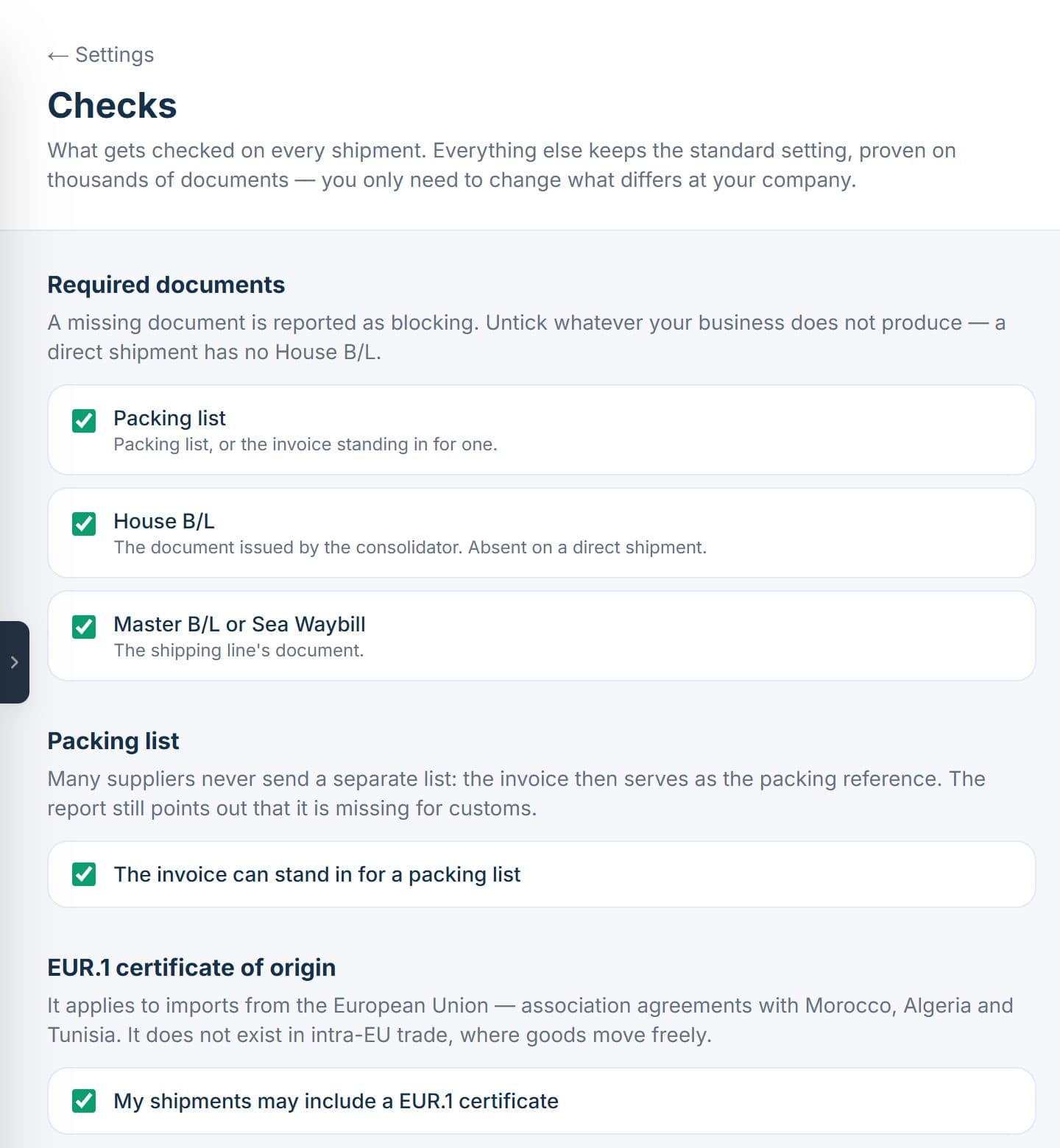
In Settings, you choose which documents are mandatory (a direct shipment has no House B/L), whether the invoice can stand in for the packing list, whether your shipments carry an EUR.1, and the report language. You also invite colleagues, as administrator or operator.
FAQ
How long does a check take?+
Usually under a minute for a shipment of three to five documents. Re-running after a correction is even faster.
Which file formats are accepted?+
PDF (native or scanned) and Excel files, up to 15 MB each. Several files can go in the same slot, for example one packing list per container.
Do I need every document to start?+
No. A single document is enough to start; each missing core document shows up as a blocking finding, which you add before re-running.
Can my colleagues work on the same account?+
Yes, users are unlimited on every plan. The administrator invites them by link and sets each person's role.
Try it on your own shipments
Five shipments free, no credit card. Your documents stay in your account.